Move whole chapters
Change the order of a course without rebuilding its chapters. Each chapter keeps its lessons, and the new order saves immediately.
Status as of 27 Oct 2026
- Stage
- Merged to main. Chapter reordering was checked on beta in the user's signed-in Chrome. Production release has not been verified.
- PR
- #605 adds whole-chapter dragging, keyboard movement, move arrows and immediate saving. Merged on 26 Oct 2026.
- Ticket
- SP-829
- Capture
- Captured on beta using the selected existing course, Stock Market Course 2. The course name and lesson titles are existing course data.
- Restoration
- The original chapter order was restored and checked after reload. All four lessons stayed unchanged.
Why this exists
A course can need a different teaching order after its chapters are written. Moving lessons one by one makes that change slow and risks putting a lesson in the wrong chapter. Whole-chapter movement keeps the chapter and its lesson list together. Instructors can change the sequence while continuing to edit the same chapter.
What changed, in one picture
Open Content
Find the chapter in the course sidebar.
Move the group
Use its handle, move arrows or keyboard.
Save immediately
The chapter number updates with the new order.
Keep the lessons
Reload to see the same saved sequence.
Demo video
About two minutes, no sound. English guide cards explain the Vietnamese UI. The blue dot marks the demonstrated control.
What you see
- Inspect the original two chapters and their four lessons.
- Drag the expanded Test live class chapter above Chuong 2, then check the new numbering.
- Reload the beta page and confirm the new order is saved.
- Use move arrows, then Space and Arrow Down for a keyboard move.
- Cancel an unfinished move with Escape.
- Restore the exact original order and reload to check it.
How to use it
Open the course's Content tab
The chapter sidebar appears on Content. The selected chapter stays open in the main editor. The course in this walkthrough starts with Chuong 2, followed by Test live class.
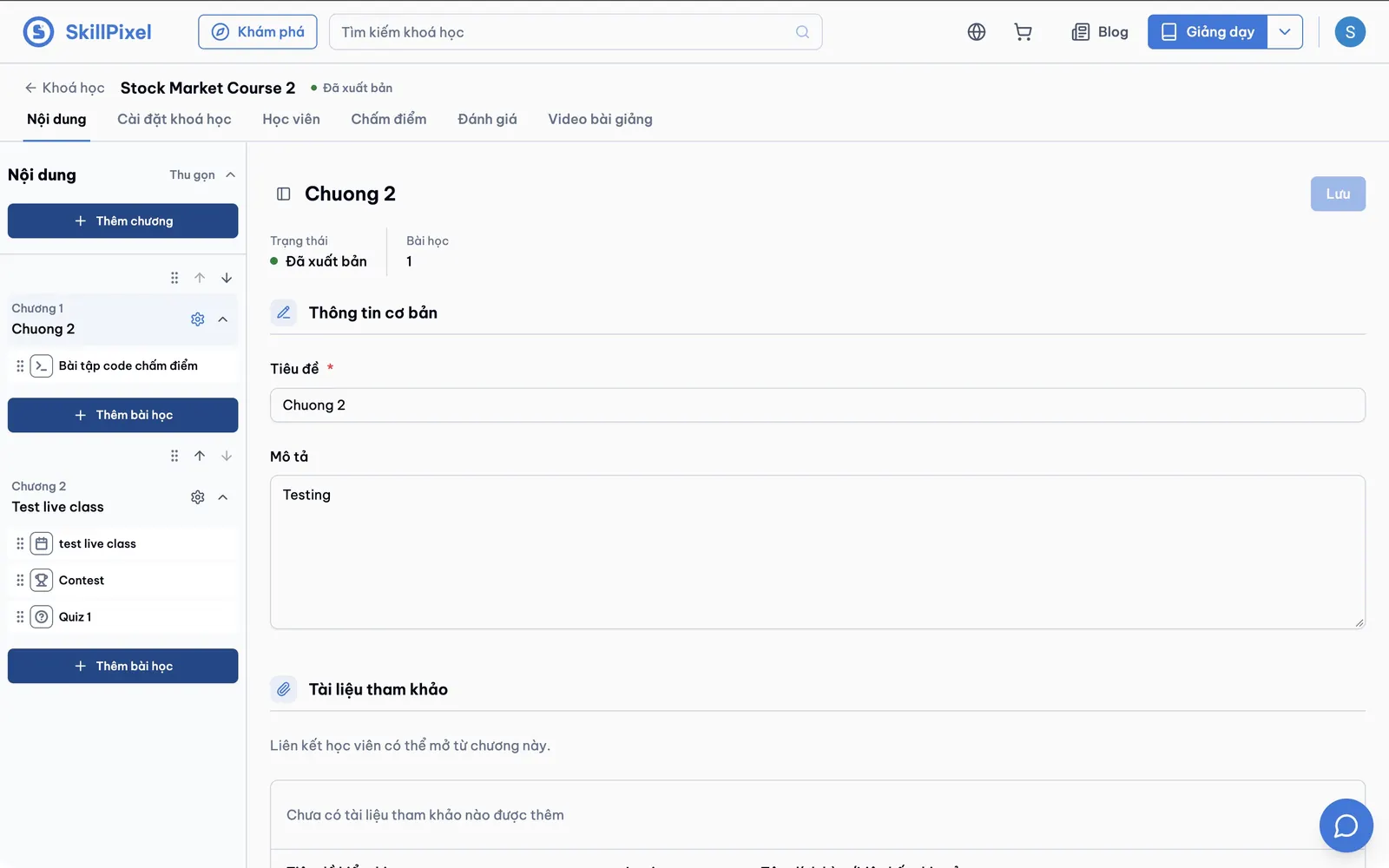
Original order on beta. Chuong 2 is chapter 1, and Test live class is chapter 2. The selected chapter remains open in the editor. Check the group you want to move
Expand a chapter to inspect its lessons. This course has one lesson in Chuong 2 and three in Test live class. Use the chapter handle above the chapter title, rather than a lesson's handle.
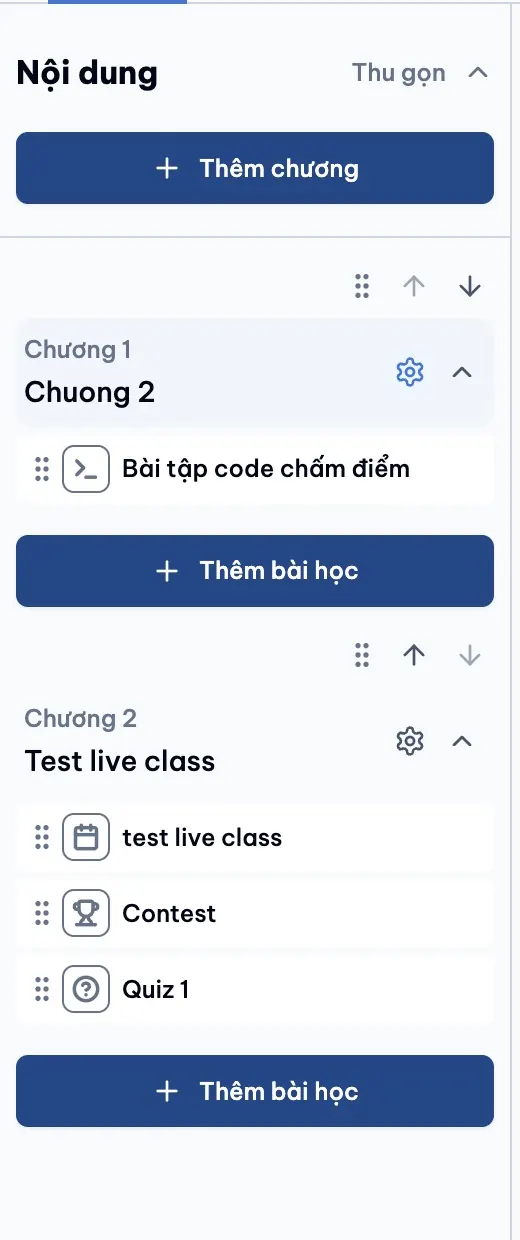
Both expanded chapters show four lessons in total. Expanding a chapter changes only the view. 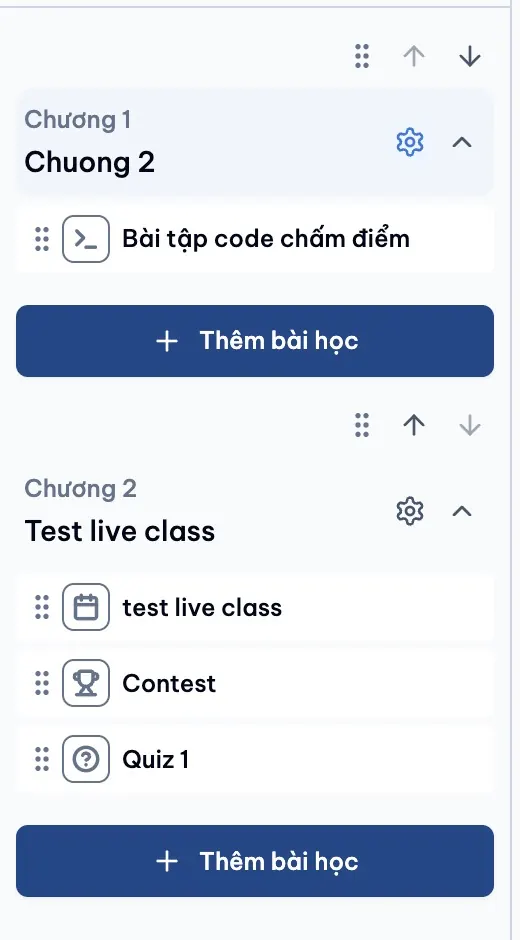
Chapter handles and move arrows sit above each chapter title. The first chapter cannot move up; the last cannot move down. Move a complete chapter
Drag the chapter handle to a new position. Its expanded lesson list moves with it. Release the handle to save, or press Escape during a keyboard move to cancel.
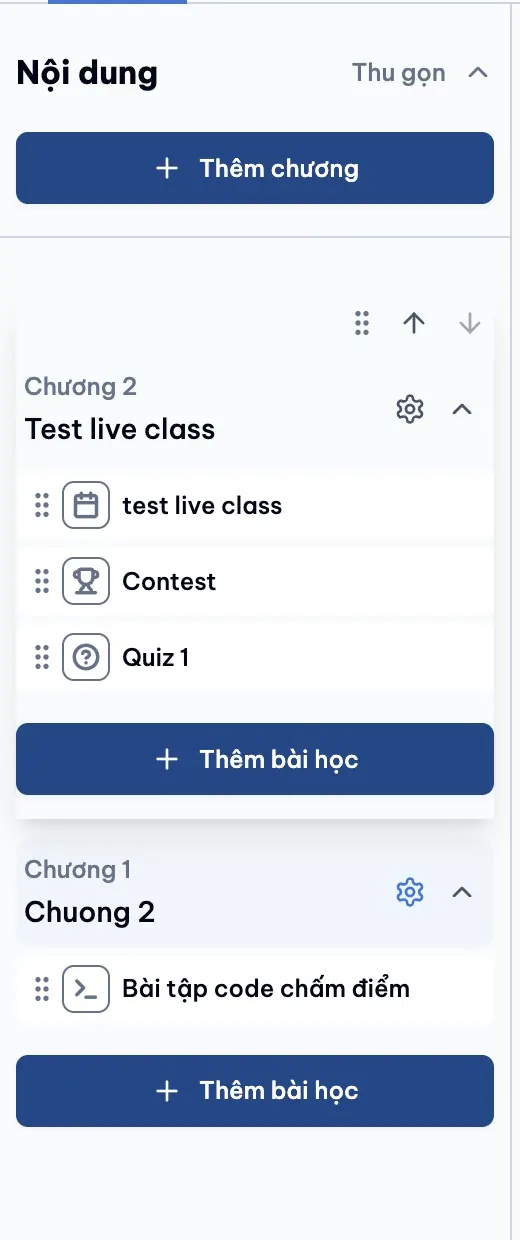
Test live class moves as one expanded group. Its three lessons remain inside the moving chapter. 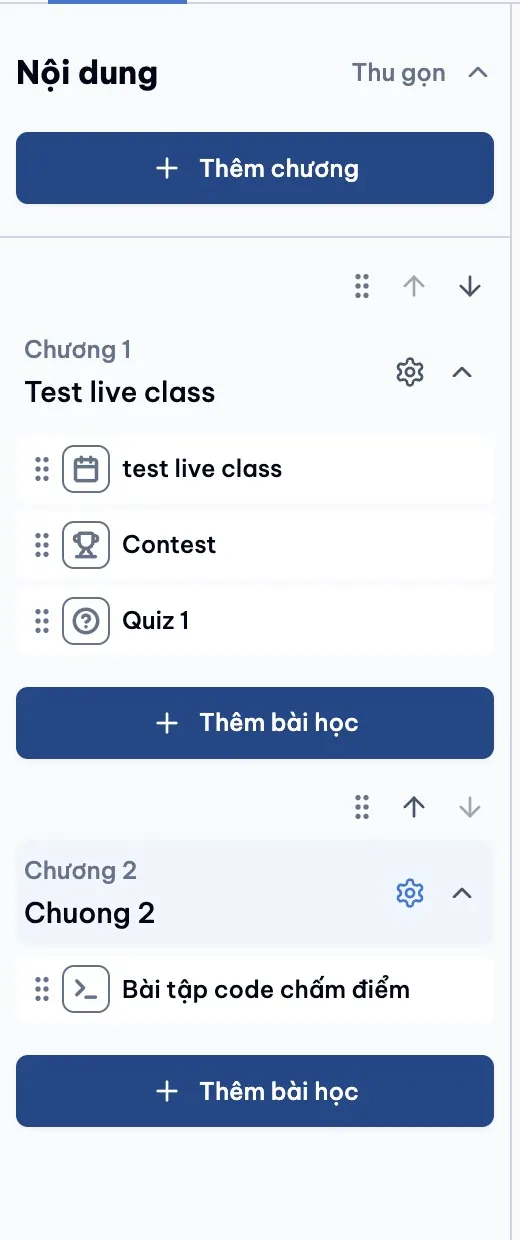
After the move, Test live class is chapter 1 and Chuong 2 is chapter 2. Their lesson lists are unchanged. Reload to check the saved order
The order saves as soon as the move completes. The form's Save button is for chapter content; no extra form save is needed for reordering.
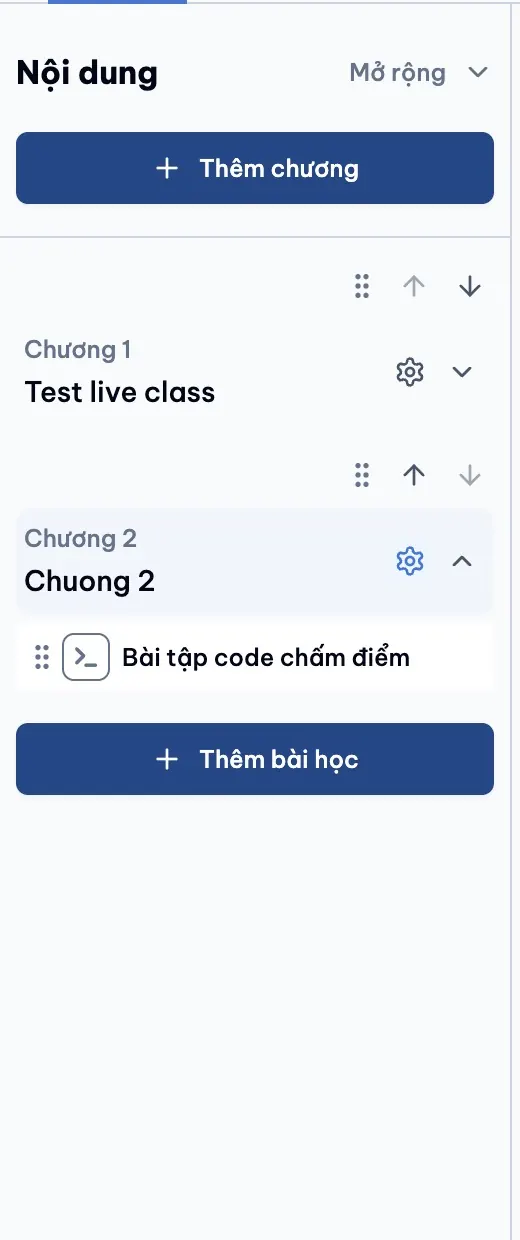
The beta page shows the same moved chapter order after reload. Use the keyboard or arrows when convenient
The up and down arrows move one position. For keyboard dragging, focus the chapter handle, press Space, use Arrow Up or Arrow Down, then press Space to save. Escape cancels the unfinished move.
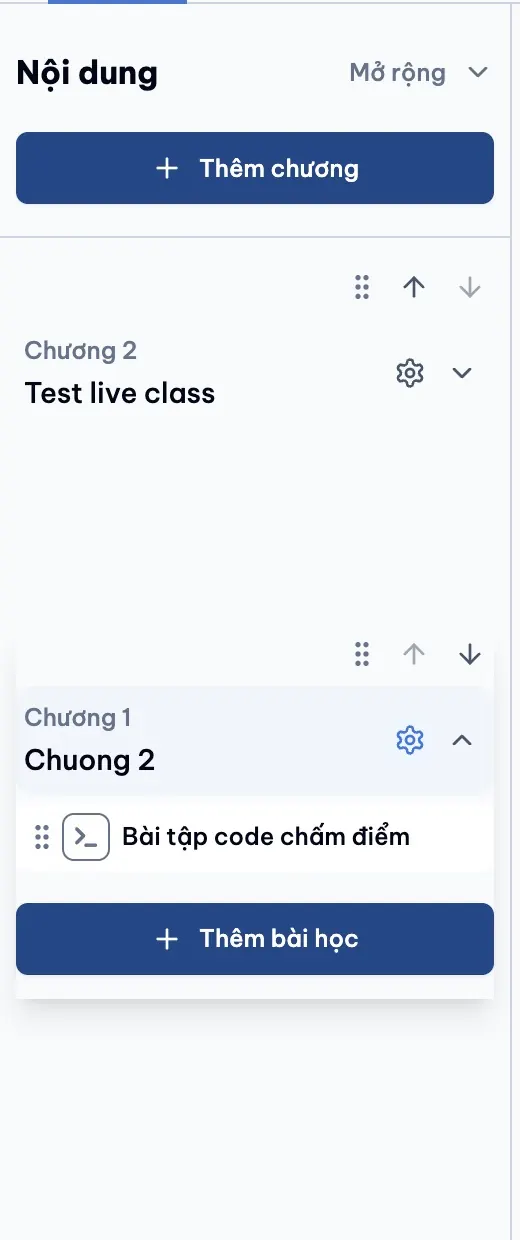
Keyboard movement previews the first chapter in the second position. The same whole-chapter behavior applies. Leave the course in the intended order
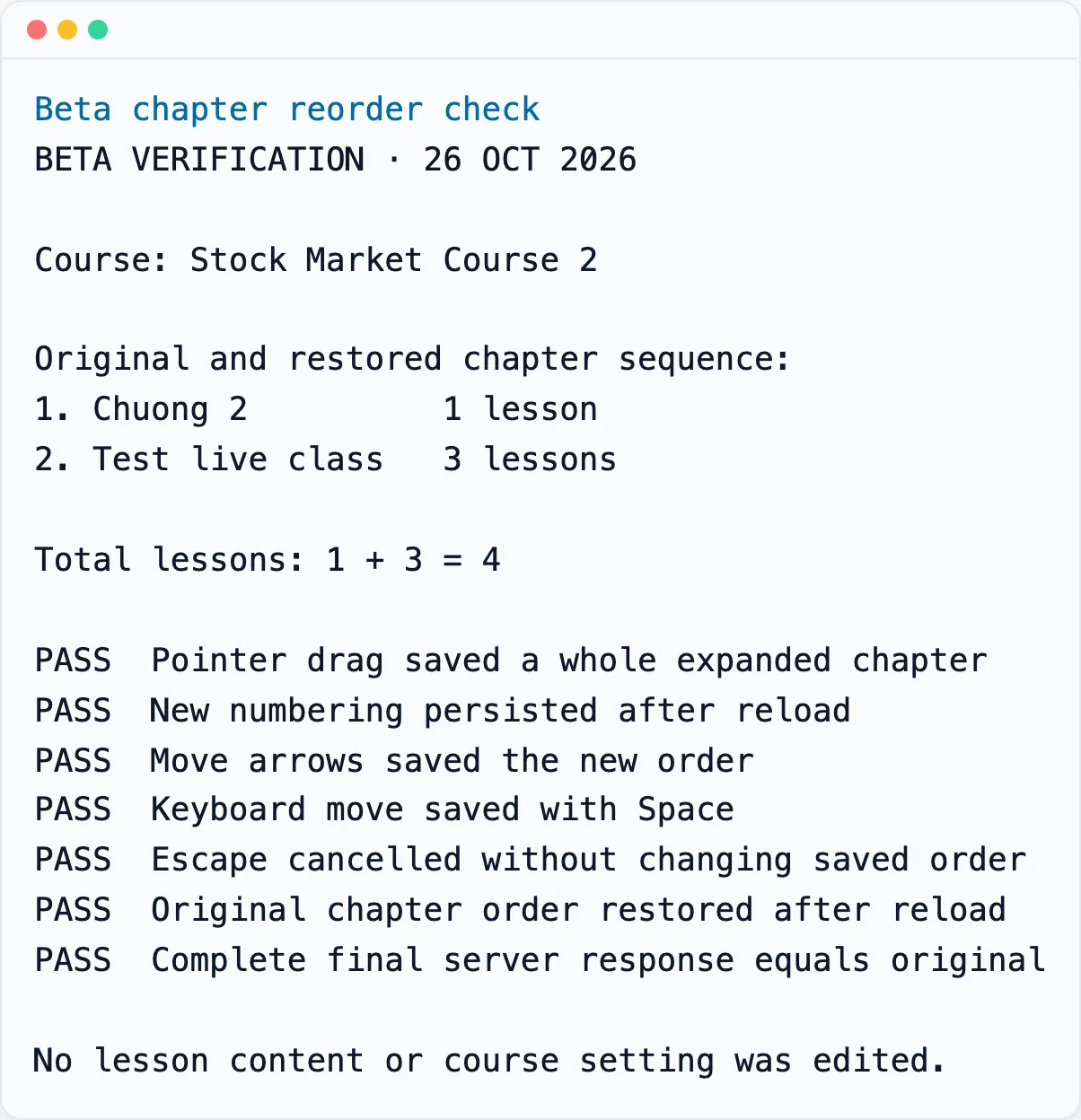
This walkthrough used an existing beta course. Its original order was restored before finishing, and a fresh server read confirmed that its chapter and lesson content stayed unchanged.
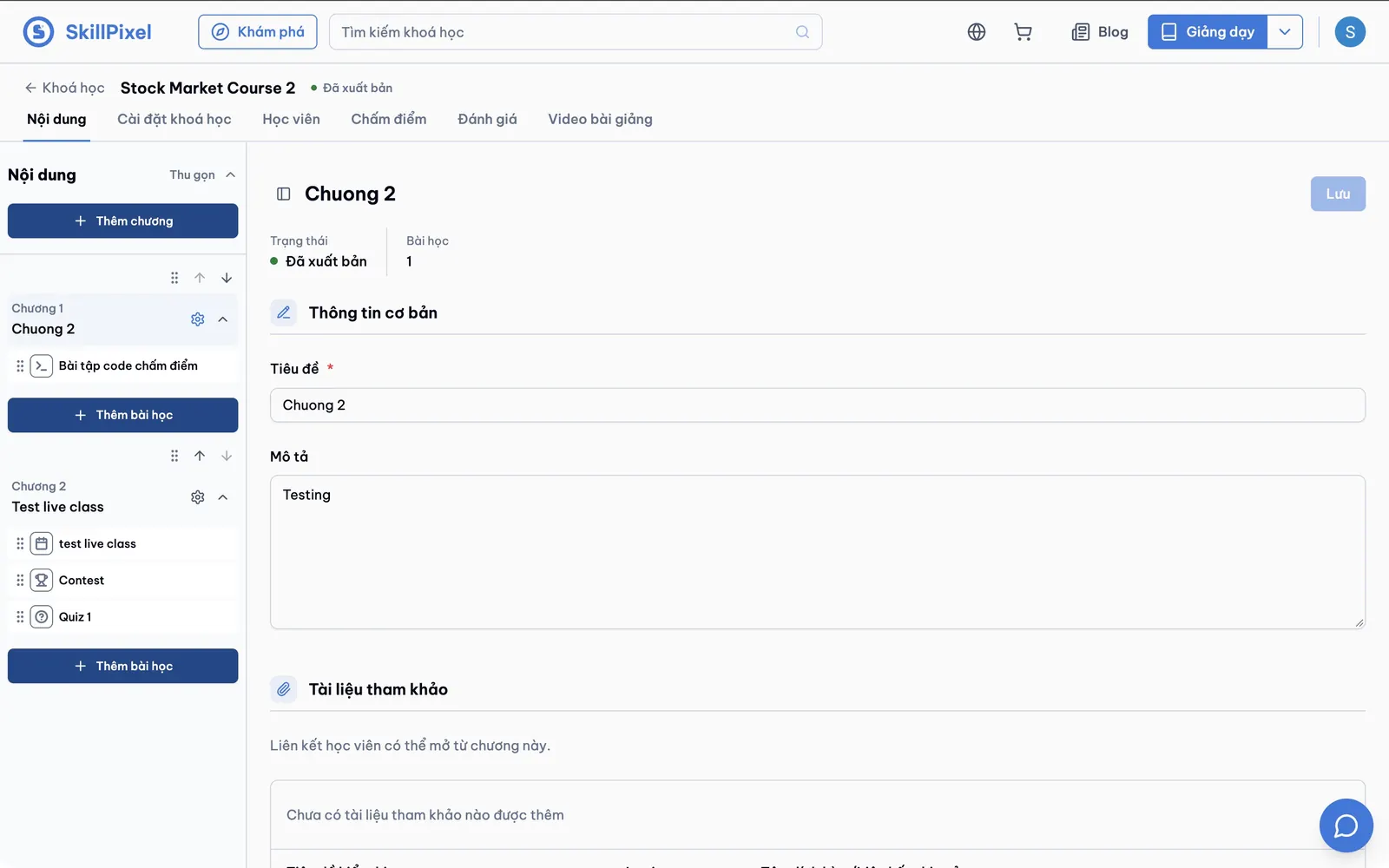
Final restored order after reload. Chuong 2 is chapter 1 again, with its one lesson; Test live class is chapter 2 with its three lessons.
Reading the sidebar
| Control | What it does |
|---|---|
| Chapter number | Shows the saved chapter position. In this course the numbers remain 1 and 2. |
| Handle above the chapter title | Moves the whole chapter and its lesson list. |
| Up and down arrows | Move the chapter one position. The unavailable boundary direction is disabled. |
| Chapter title and chevron | Expand or collapse the lesson list. |
| Settings gear | Open that chapter's editor without changing its position. |
| Handle beside a lesson | Moves the individual lesson. It is separate from the chapter handle. |
Why it can be trusted
- Real saved results. Pointer dragging, keyboard movement and move arrows were checked against the beta server, followed by reloads.
- Content stays together. Before and after server responses were compared. Apart from chapter position, the chapter data and complete lesson lists matched.
- Cancellation leaves the saved order alone. A keyboard move was cancelled with Escape, and a fresh server read still showed the previous order.
- Concurrent editors get a clear recovery path. A save includes the sequence the editor originally loaded. If it has changed, the server rejects the stale save and the UI reloads the current order. This path is covered by automated tests; it was not simulated against the existing beta course.
Checked by hand. The original course had 1 plus 3 lessons, for a total of 4. After moving the chapters and restoring them, the same four lessons were still associated with the same chapters. The chapter sequence and every returned content field matched the original snapshot.
Known limits
- This beta course has only two short chapters. It does not demonstrate a chapter taller than the sidebar. Tall-chapter scrolling and keyboard behavior were checked separately in automated and local browser tests.
- Lesson reordering within and between chapters was not performed on this existing beta course. Automated regression coverage passed before merge; a separate beta check is still needed before treating all acceptance criteria as verified on beta.
- Permission-denied, read-only licensed copies, network failure and simultaneous editor conflicts were not forced on this beta course. They have automated coverage.
- The walkthrough was automated in the user's existing signed-in Chrome. It used the real beta app and real saves.
- A production deployment was not verified. Use the beta result as evidence for beta, and confirm the production release separately.
Decisions taken
| Decision | Choice |
|---|---|
| Which browser? | The user's existing, signed-in Google Chrome. |
| Which data? | The already open beta course, as requested. No demo course or seed rows were created. |
| What changes were allowed? | Temporary chapter moves, followed by exact restoration. Course settings and lesson content were left alone. |
| Video language? | Silent video, Vietnamese application UI, English guide cards. |
| Ticket status? | Testing. The feature is merged and its core chapter flow passed on beta; remaining beta regression checks are listed above. |
Rollout checklist
- PR #605 is merged. The existing editor layout and new chapter controls are visible on beta.
- This feature adds no migration, new dependency or scheduled job.
- Complete the remaining beta regression checks for individual lesson moves and a tall chapter.
- Keep SP-829 in Testing until beta verification is complete. Move it to Unreleased after those checks pass, and Done only after a verified production release.